
Very often in a flow you want to record system activity. For example in a home automation flow you may want to log:
- when a door is opened and closed
- when a fire alarm is activated
- when a temperature exceed a certain level
- etc
For an industrial process you may need to log:
- When the conveyor belt started and stopped.
- When the heater was turned on and off
- etc
Node-RED logging
You are already familiar with the node-RED logging functionality which is used mainly for debugging. See here for more details
The logging module writes it’s output to the console, but you may need to record these events in a log file or even centralise logging for multiple node-red instances.
The console displays log messages from the system and also from function nodes that use the node.log function.
The logging module allows you to create custom logging configurations and the documentation does provide an example.
I came across this example a few years ago but didn’t quite understand it until recently when I revisited the logging feature for a current project.
Logging to a File and to an MQTT broker
My requirement was to centralise logging and in addition to create a local log/event file. The following is the exact steps you need to follow to do the same.
The steps are
1.create a custom logger or loggers by editing the settings file
2. Decide on what you will log.
3 Run the flow using the settings file
A screen shot of the settings file I use is shown below:
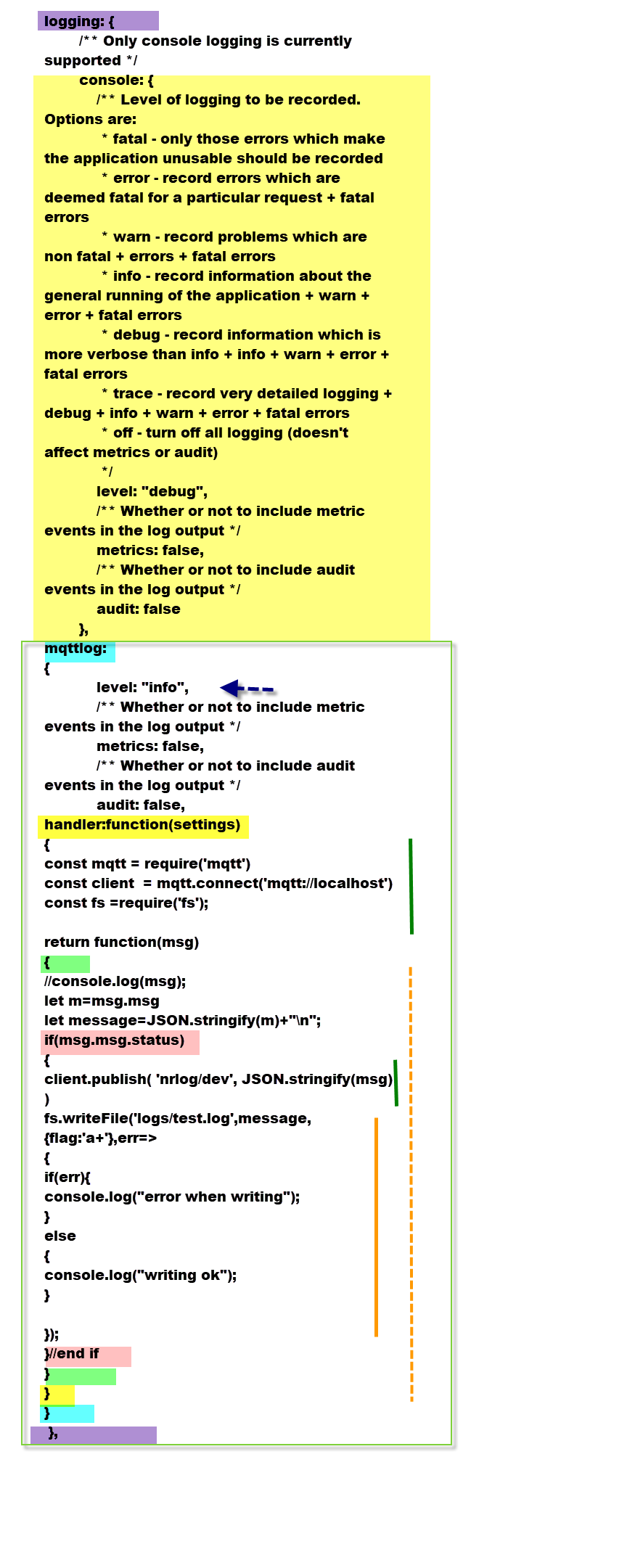 I have marked the screen shot to highlight relevant areas which we will go through in more detail.
At the top highlighted in yellow is the standard entry for console logging with comments explaining logging levels.
My custom logger is called mqttlog (blue highlight).
Directly underneath I have set the logging level to info.
Next we have our handler function (yellow highlight) which also contains a return function (green highlight).
At the start of the handler function we import some modules that are required (mqtt and fs) code below
const mqtt = require(‘mqtt’)
const client = mqtt.connect(‘mqtt://localhost’)
const fs =require(‘fs’);
The return function takes the msg object as a parameter.
The first three lines deal with the msg object.
//console.log(msg);
let m=msg.msg
let message=JSON.stringify(m)+”\n”;
Most examples just leave the msg object as it is and log it.
It then contains the same information that you see normally on the node-red console.
If you uncomment the console.log then you will see what it contains.
I am only interested in the msg part of the object hence the line
let m=msg.msg
Now in my function nodes I create a msg object with predefined fields. The object is called event in the code that is shown below
let event = {status:”property change”,message:message, “property”:prop,oldvalue:oldValue,newvalue:newValue,”device”: key,time:now };event.node = thisNode;node.log(event);
The object has a status property which I detect in the logging code. This I do so that I only get the events I want and not system events. The code is shown below
if(msg.msg.status)
{
client.publish( ‘nrlog/dev’, JSON.stringify(msg) )
fs.writeFile(‘logs/test.log’,message,{flag:’a+’},err=>
{
if(err){
console.log(“error when writing”);
}
else
{
console.log(“writing ok”);
}});
}//end if
Note: you can remove the console.log code, change the MQTT topic and file name and location to suit your application.
Below is an example showing what the event log looks like.
{“status”:”property change”,”message”:”property change”,”property”:”power”,”oldvalue”:”OFF”,”newvalue”:”ON”,”device”:”socket2″,”node”:”process all tasmota messages”}
Video
Related Tutorials and resources: